Friday, April 27, 2012

Inside Xperia Neo V

Its been a couple of weeks since the first time I brought my new Android Phone. Yes, finally after long months of saving I finally got one. :) The brand that I brought was by Sony Ericsson which is the Xperia Neo V. At first I was like what's this? (As I was a Nokia baby back then). But after some hours of exploring, I finally understand how to use my phone. :)


Xperia Neo V


Just to be clear I'm not that geek when it comes to mobile technology. So most of the things that I'll share to you today is based on my day to day experience when using this phone. You may seek assistance to your phone manufacturer if ever you have technical questions about your phone. You may leave some comment to if you'll have questions and suggestions. :)


Let us look first at the specifications of Sony Ericsson Xperia Neo V. (Mind you, I find it hard to find this phone in the Philippines).


Camera:
Primary: 5 MP camera with LED flash
Secondary: VGA
OS: Android OS (Gingerbread), planned update to version 4
CPU: 1 Ghz
Data: WiFi, Bluetooth
Media: FM Radio, 720p Video recorder, Music/Video playback
Memory: Expandable up to 32GB, 
Note: for detailed specification you may refer to this link: Neo V


Alright now lets have a tour to my Xperia Neo V.


Home Screen.
Every standard Android smartphone has this Home screen. Its like your desktop where you can place all your shortcuts and widgets that you normally use. You can create folders in order to sort your shortcuts in the Home screen. 


Home Screen
Home Screen (with Folders)


Messaging.
In Xperia Neo V you have an option whether you'll use a full key board or a phone pad, which is good specially when your not that used to qwerty keyboard. It also has a word suggestions and can learn new words as well which you can choose even without finishing the word your typing.


Portrait Keyboard
Standard Phonepad
Word Suggestion


Landscape Keyboard

Call.
For the dial pad, nothing's change its like your normal telephone. It also has a favorites tab where all those people you marked as favorite will definitely be placed there :)


Dial Pad
Favourites


Camera.
It has a dedicated camera button on the lower right side portion of your phone. It also has a touch capture capability. You can also create a panoramic picture using the 3D camera. And of course record a 720p video for capturing your most memorable moment.


Camera


Music/Video Player.
I'm a frustrated singer on my own little way. :D You can use Neo V to listen to your favorite songs. You can create playlist according to your mood. You might as well try to play your recorded video using the HD camera or a music video. By the way the supported formats are MP4 and 3GPP. But there is application available on the Play Store that can play different files types such as MKV, FLV and AVI. 


Customization.
You can freely customize your phone according to your style. Aside from the default theme, you can also download a theme which is freely available on the Play Store. There's also Live wallpapers available. But I prefer the default once since its elegant. :) If your proud of your creations/ customization Neo V has a default screen capture so you don't need an app for that. Just long press the power button and then take a screenshot. :)


Theme
Live Wallpaper
Screen Capture


Applications.
What's the use of your smartphone without an apps. Its alright to download all the apps as much as you want. But please be reminded that this might ruin the performance of your phone. Of course all that is too much is bad even if your device is high end. So if I were you, I'll just download the apps that I normally use. In Xperia Neo V, its so easy to manage your apps, You can also freely move your apps from phone to SD card. However there are some apps that requires phone memory which is an exception. Apps are freely available on Play Store. So if ever you glanced on an application which requires payment, try to search for a free version first. It may lock some functionality but still you're able to use it for free. Its good that you spend your money for your primary necessity.


Here's a list of the apps and games that I used. I got all of them for free. So prepare yourself in an array of choices. And again I remind you to install only what you'll used frequently. This is to ensure that you'll get the most out of your android smartphone. 


Utilities:
Any.DO - This app is a scheduling assistant as well as a reminder. It helps me track the things I need to do within a day. Great app for those who have short term memory :)
StopWatch & Timer - Unfortunately, Neo V doesn't have a default Stopwatch. Good thing is that its freely available on the market so you have nothing to worry about. 
Battery Widget - I have to install this widget in order to keep track of my battery usage. It displays the remaining percentage of my battery as well as the current cellphone temperature.
Work Out Trainer - There is a free version of this app, it displays set of exercises that you can follow. In the end its all in the matter of discipline I guess. :) I have to make exercise a habit. :)
Bible - This app contains verses from the bible. If your fond of reading scriptures your free to go.
OfficeSuite - Pre-installed app on Xperia phone. Used for viewing document files.
MOBO Player -  since Neo V only supports 2 video formats, I downloaded this video player that plays the other video formats like FLV, MKV, AVI, etc. (I haven't tried others.) This is a very effective player. Its open for download for free
BPI Express Mobile -  BPI application available for android. Lets you do your BPI banking needs. 
Retro Camera and Aging Booth - app for additional camera features. There are other camera apps on Play store available to download for free. :)


Editing Tools
You can use PhotoShake, Photo Grid, PicsArt and Instagram all of them have standard editing tools for creating beautiful photos. 


Games
For the games I'll have this in bullet as some of them I know your familiar of. :)

  • Temple Run (My favorite)
  • Memory trainer
  • IQ Test
  • GeoQuiz  (My favorite)
  • Word Search  (My favorite)
  • Draw Free 
  • Ant Smasher
  • Fruit Ninja
  • Glow hackey
  • Tiki Kart 3D
  • Angry Birds Space
  • Building Tower
  • Simsimi (Its not a game, I just classified as game for organizing my application. :)) )

Social Network

I guess I'll have to enumerate this one as we all know about this stuffs. :))

  • Facebook for android
  • Twitter
  • Google Plus
  • Youtube
  • Sound Cloud
  • Instagram
  • Yahoo Messenger
  • Wordpress
My Downloaded Apps_1


My Downloaded Apps_2


Android is Google.
If your utilizing Google services, then you've chosen the right product. For me android is really for Google. You'll find a lot of pre-installed app from Google on your Neo V. You have nothing to worry about. Below is a list of some. Of course you can search for them in Play Store if ever its not installed on your phone.
  • Gmail
  • GTalk
  • Places
  • Navigation
  • Latitude
  • Google Maps

In a nutshell, there's a lot of options out there. Just make sure you assess yourself while purchasing a phone. If you know for yourself you'll go most for games and apps then you need to purchase a high end device probably a dual core processor to suit your needs. If you are into business side with a bit of apps, there's a phone in the market also that you can find. What's important is that you're enjoying the most out of your phone.  Also be contented of what you have. Don't buy electronic device so frequent. Consider also recycling to lessen e-waste in order to help save our environment.  Be contented. If you keep on comparing you'll end up hating. Thanks for taking time reading this. Have a nice day.

Last note.
Its better if you'll subscribe into a data plan in order to fully enjoy your smartphone. Specially security. There are a lot of security apps in the Play store that needs a continues internet connection. This will ensure that your phone is safe. By the way Neo V is also GPS enabled so there. Enjoy! :)

Thursday, January 19, 2012

Unboxing Buffalo HD-PC1TU2/BB-AP

Recently I've purchased a new portable hard drive. It was manufactured by Buffalo Technologies. I've read some reviews about it and it seems to be a good storage device.

Product Details

  • Interface: USB 2.0
  • Capacity: 1TB 
  • Plug-n-Play
Features:
  • Compact and Lightweight: 17mm thick
  • Pre-formatted, ready for use immediately
  • USB powered no need for a power supply
I'm currently transferring my files to this new HD its transfer rate for me is 6.35 MB/sec. Need not to worry I'm using a very low end laptop. I believe it'll be faster if you have a more high end device. 


Anyways this device will let store your 1TB files by which you can purchase at a very affordable price. See some screenshot below for the look and feel of the device. 


Buffalo HD

Box contents

Actual usage


Saturday, October 29, 2011

Unboxing of HP s300 Digital Camera

Its been a very busy month for me and that I was not able to update this blog of mine. Because I have to deal with office works. Anyways, what I'm showing you right now is the new HP s300 Digital Camera. The purpose of this is to show the actual box contents of this new device. Then we will take a look at different features of this digital camera from HP. Basically, HP s300 digital camera is 14.2 megapixels, with a 4x digital zoom. Also it can record up to 720p HD video.

The box contains,

  • USB power cord.
  • Power Adapter
  • HP s300 Digital Camera
  • Driver
  • Manual
  • Hand strap
  • Li-ion rechargeable battery

Box contents


Additional (sold separately/ "free" by promos):

  • Memory Card 
  • Camera case

Additional Contents


The device is perfect for a typical users who loves to take photos and share it through social networking sites. Its also suitable for printing captured that will surely have a nice image. Lets discuss some of the key features of the camera..

See sample captured images below:


The camera is user friendly, the interface is like the your usual digital camera.
  • There are 35 scene modes to choose from. Depends on the needs and situations of the your photos. Such scenes are, auto, program, inteliggent scene, portrait. landscape,sunset backlight, kids, night scene, LOMO, fireworks, snow, sports, party, candlelight, night portraitsoft skin, flowing water, food, building, text, foliage, auction, smile capture, blink detection, pre-composition, love portrait, self portrait, d-lighting, fisheye lens, aperture priority, . Don't worry there are on screen guides so you'll never get lost. 
More sample shots:

Fisheye Scene

LOMO effect


One of the reasons why I purchased this camera is the 720p video resolution. What I will be showing you guys is a bit lower resolution of this camera. You can set the video resolution you want to shoot depending on the situation you are into.


I am not a professional photographer but this device I guess can help me shoot a quality photos at low price.  See for yourself too.

Tuesday, September 6, 2011

This is noted.

Been so busy with work last week that's why i was not able to blog something worth reading for. Anyways, speaking of work, its very important you keep track of all the things specially the notes and schedules that needs to be on your priority. Let me share to you these two tools that I personally use to organize the things that I need during our day to day operations.

OneNote - Microsoft
Organize your notes per Notebook

Lists per tabs, and format notes using the formatting toolbar

Lists of all notebooks

Title per pages

Per pages
This is also another powerful productivity program by Microsoft that is meant for taking down notes. Its special feature is there is no SAVE button. All of the notes that you jot down will be automatically saved even if you accidentally close the program. It also allows you to arrange your notes per notebook and while per notebook you can separate it per pages.


My Notes Keeper


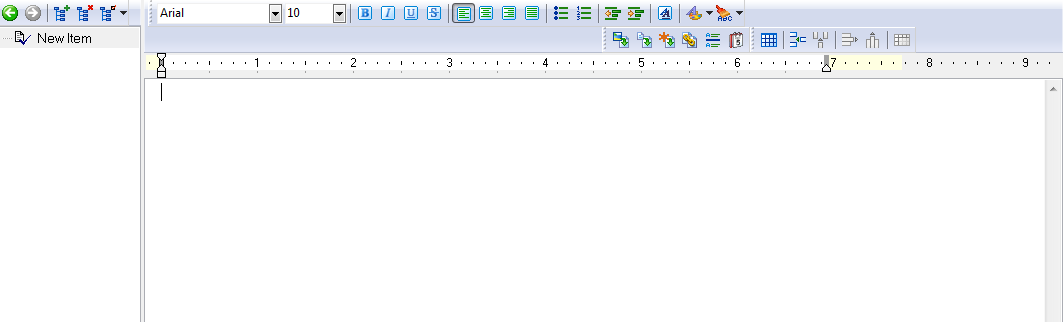
Another tool that I am using after it was introduced to me by one of my colleagues is this my notes keeper. Same functions as OneNote but the only difference is that you organize your notes by Tree format or should I say its like an outline form. It needs to be saved each time you'll add a new node to your tree and you can separate your "general" notes displayed on tabs while the lists on the sides show all your notes on every specific tabs. Below are the sample screen shots:


Tuesday, August 30, 2011

Rec it up

I am really fond of watching YouTube Videos. Most of the videos that I am watching are the songs from my favorite music artists. I guess you have encountered a song that you really like listening to but you can't find it to other downloading sites aside from the fact that its uploaded on YouTube...


So allow me to share you this tool from Real Player that lets you download YouTube Videos which are saved in FLV format. It also has its own converter so you can convert your music into mp3 formats.

Once you installed that tool or should I say plugin from Real Player you can see the Download This Video while watching on YouTube.


upon clicking that you can see the progress of your download which is something like this..


To show you the Real Player converter, here's a sample screenshot..


You can download the plugin on the Real Player site.

You can also try other recording plugins available in the internet, such as the YouTube Downloader and Orbit  Downloader to name a few.

Since we're talking of YouTube Videos, please find time listening to Julie Anne San Jose's version of Super bass... Happy listening... :)


Monday, August 29, 2011

Lets Mesh Them Up

As you may have noticed, I am a proud Microsoft user. I do love the products of Microsoft. :) Another program that I'll be sharing with you is what we have used to share documents Remotely. Its called Windows Live Mesh.

Like any other Microsoft Services, you must logged in your LIVE account to enjoy Mesh.


Then you will see this window where all your synced folders are listed. You can also sync Program Files for remote access.


To sync a folder, you just choose a folder to be synced then it is good to go.


If you want you could try this one. All you need to have is a LIVE account then you could enjoy other usage of this as:

  • Sync copies of documents for all your computers whether PC or Mac
  • Sync it to your very own SkyDrive
  • Access remotely
  • Sync you Programs

Sunday, August 28, 2011

Meet the DBAs

Information Technology (IT) is the area of managing all the sorts of technology focused on data within a company.

It may not be limited to things such as processes, computer software, information systems, computer hardware, programming languages and data constructs.

So part of those within the IT industry are the Database Administrators. Basically the task of the DBAs are focused on the design, implementation and monitoring of the database environment. For those who are not familiar of database, it is an organized collection of data. The DBA Task remains the same which will only depend on the technology he'll be handling. Such as Oracle, MS SQL, MySQL, Informix, DB2 and basic like Access and other technologies.

The task that the DBAs concern:
  • Installing and upgrading of database server
  • Storage allocations
  • Tables, Views and Indexes
  • Users of the database (Enrolling, Access Controls and Maintenance)
  • Backup and recovery plans
  • Monitoring and optimizing the performance of the database
So if be asked the importance of the DBAs, basically they are the once keeping the company's data safe and easy to to recover. For a very large company, its hard to maintain data specially if your doing it manually but with DBAs at your side you can assure that your data are safe and could be retrieved easily when needed.

As an emerging DBA, though we're only limited to those task but if streched our way to learn other technologies as well, rest assured that you will have a good future as a Database Administrator.